Features in focus
New prices. Same QR code.
Adjust product prices and surcharges in your dashboard. Keep the table displays you already printed.
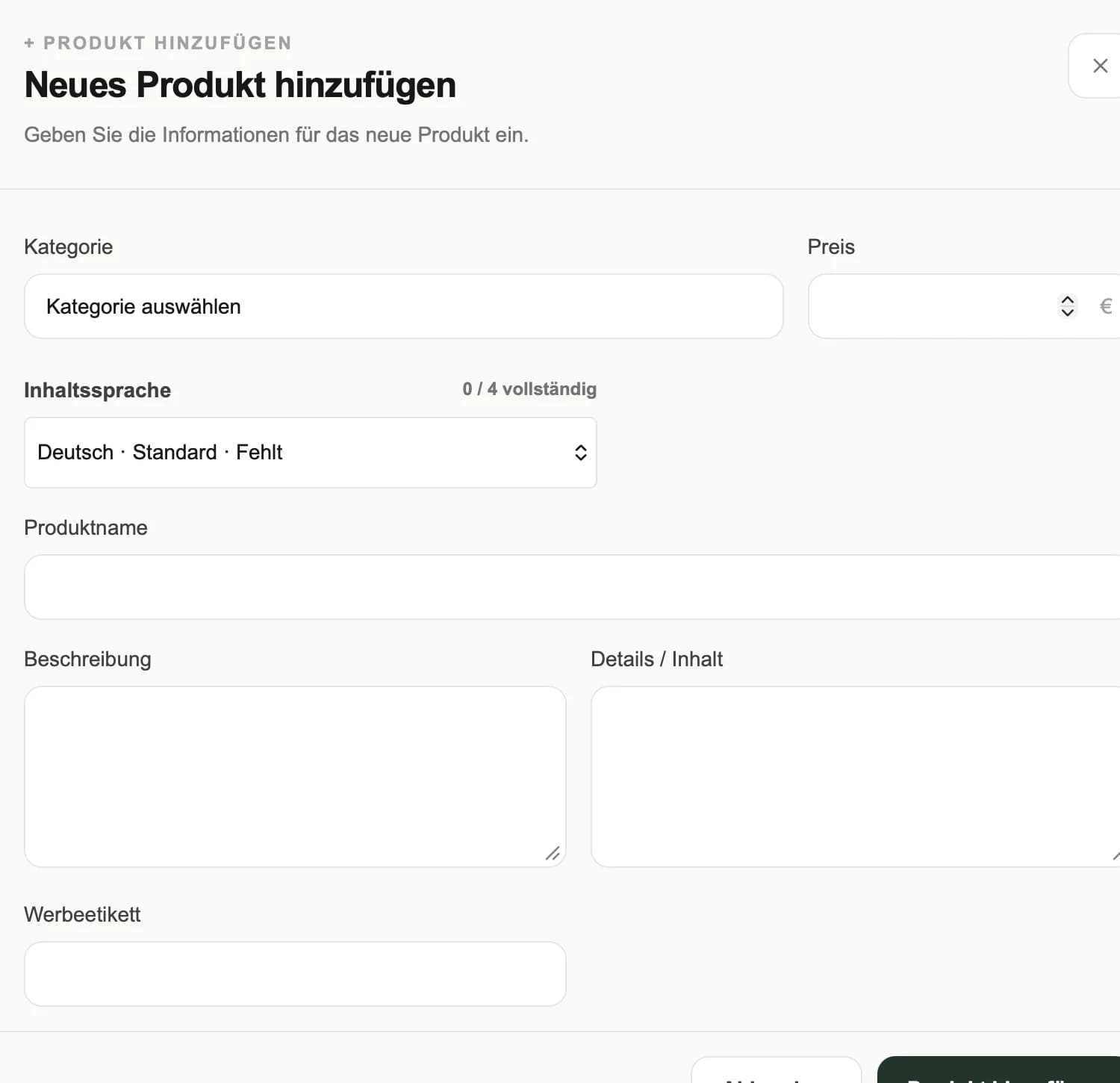
- 01Keep existing QR displays when prices change
- 02Product prices and surcharges in one place
- 03Review changes in the guest menu
WHY IT MATTERS
Maintain prices in one place
A revised costing does not have to start with a new print file. Edit the price on the product and save the change. Your menu link stays the same.
Keep extras consistent
A dish may have sizes, sides or other options with surcharges. Review these alongside the base price so guests can understand their choices.
Check the guest view
Open the guest menu after editing and refresh any menu already open. Check the displayed price and options in the languages you use.
HOW TO USE IT
Three steps. A clear workflow.
- 01
Open the product
Select the dish or drink in your dashboard.
- 02
Edit the price
Enter the base price and review surcharges.
- 03
Save and review
Refresh the guest menu and check the result.
AN EVERYDAY SERVICE SCENARIO
An ingredient cost changes
You revise the price of a pasta dish. Review its base price and optional extras; the QR code on the tables stays the same.
An illustrative use case, not a customer testimonial.
A FEW USEFUL ANSWERS
Good to know.
Do I need new QR codes after a price change?
No, provided the linked menu URL stays the same. Product edits do not require a new code.
Can I update surcharges too?
Yes. Review the options and surcharges stored on the product alongside its base price.
YOUR VENUE. YOUR NEXT STEP.
A menu that fits the way you work.
Let’s talk about your menu, your guests’ languages and the features you need.