Features in focus
Sold out? Keep your menu in step.
Mark products as unavailable or hide them. Keep their names, images and descriptions ready for their return.
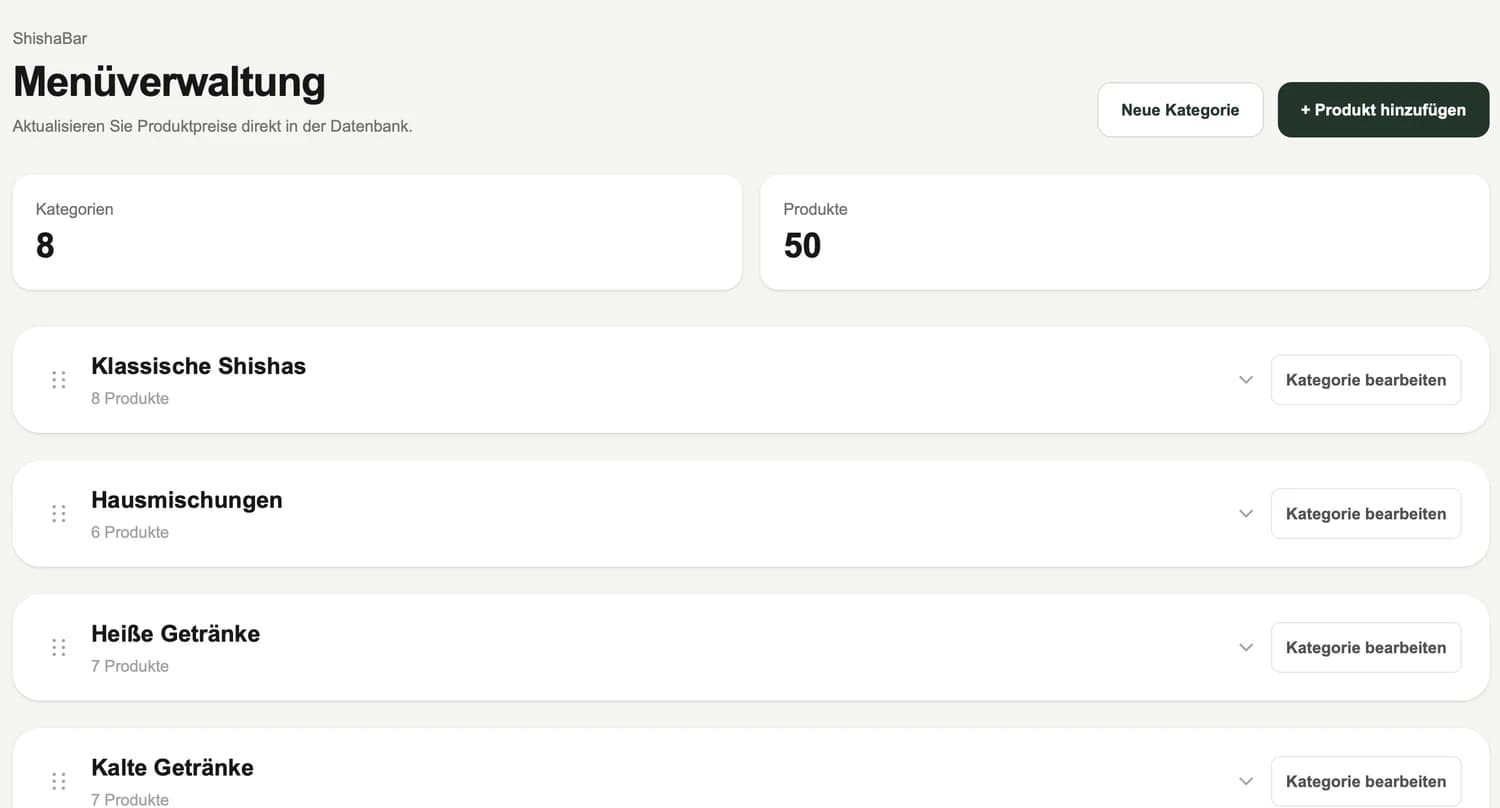
- 01Keep product details for later
- 02Align the menu with kitchen and counter availability
- 03Control what appears in the menu
WHY IT MATTERS
Pause instead of deleting
When a dish runs out today, there is no need to remove its details. Update availability and reuse the existing entry when it returns.
Choose what guests see
Availability and visibility are separate settings. An unavailable item may still appear, depending on the design. Change visibility when you want it removed from the guest menu entirely.
Coordinate before service
Agree who checks the menu with the kitchen or counter team. Review the result in your chosen design and restore the item when it is available again.
HOW TO USE IT
Three steps. A clear workflow.
- 01
Select the item
Open the affected product.
- 02
Set its status
Adjust availability or visibility to suit the situation.
- 03
Review the guest menu
Check the display and restore the status when the item returns.
AN EVERYDAY SERVICE SCENARIO
The last slice has gone
The counter reports that the cheesecake has sold out. Update its status and keep its photo and description for the next delivery.
An illustrative use case, not a customer testimonial.
A FEW USEFUL ANSWERS
Good to know.
Do I need to delete sold-out products?
No. Change availability or visibility and keep the product entry.
Is an unavailable item always hidden?
No. Presentation depends on the design. Use visibility to hide the item completely.
YOUR VENUE. YOUR NEXT STEP.
A menu that fits the way you work.
Let’s talk about your menu, your guests’ languages and the features you need.