Features in focusPremium
The right menu at the right time.
Breakfast in the morning, lunch dishes at lunchtime. Use Premium to plan when categories and products appear in your menu.
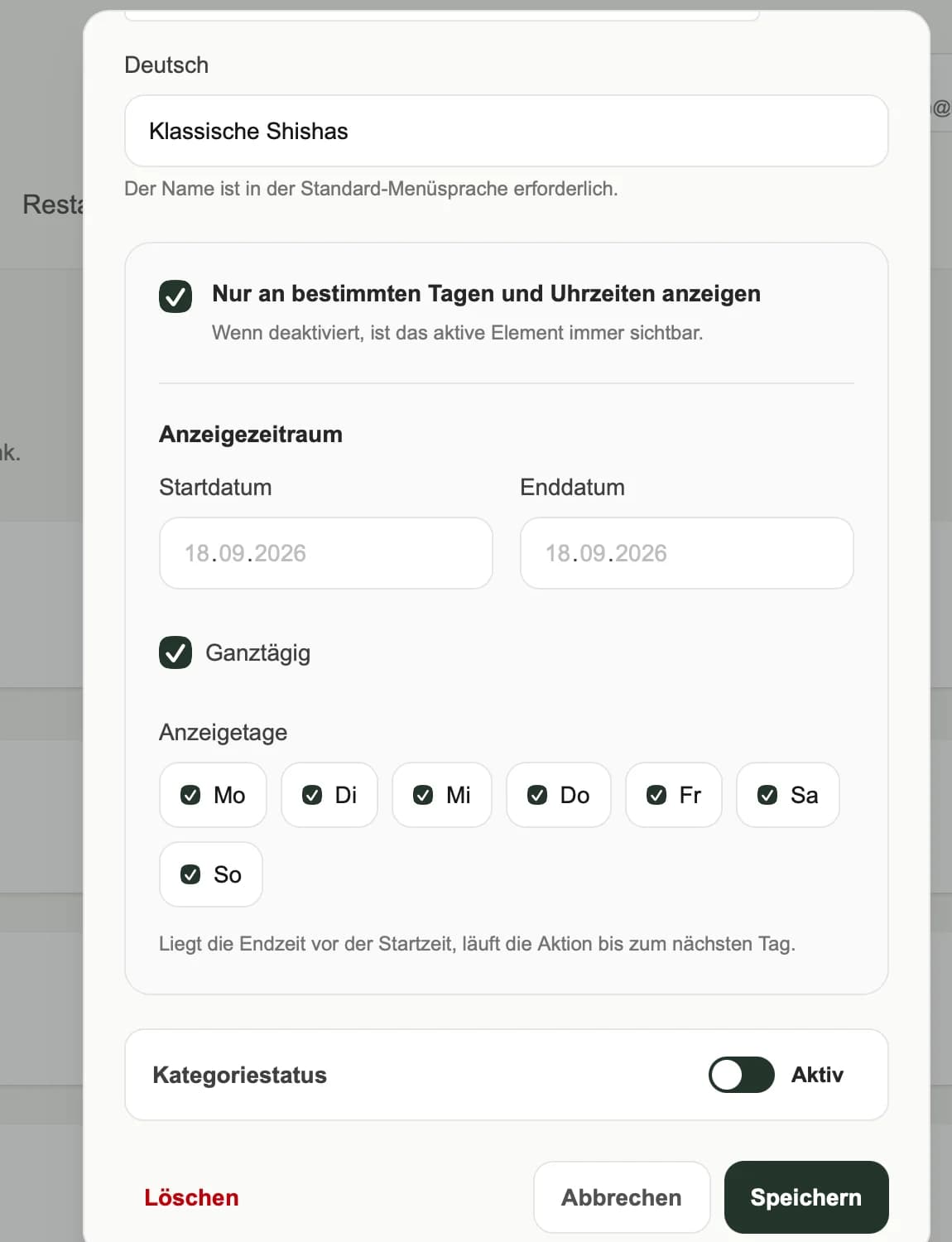
- 01Prepare recurring service windows
- 02Separate breakfast and lunch clearly
- 03Set windows for categories and products
WHY IT MATTERS
Match the menu to service times
A separate breakfast category keeps the menu organised. Scheduled visibility displays it within the chosen window instead of requiring a manual switch for every service.
Dates, weekdays and times
Premium supports time windows for categories and products. Check the restaurant time zone and align the schedule with your actual kitchen service.
Plan categories and products together
A product belongs to a category. Review both levels when combining schedules. Check transitions between breakfast and lunch so the guest menu matches what you serve.
HOW TO USE IT
Three steps. A clear workflow.
- 01
Group the dishes
Create a category for the relevant service.
- 02
Set the window
Choose dates, days and times with Premium.
- 03
Review transitions
Check the time zone and category and product schedules.
AN EVERYDAY SERVICE SCENARIO
Weekend breakfast
Show your breakfast category on Saturdays and Sundays from 9 am to noon. Set that window and check whether individual products have additional restrictions.
An illustrative use case, not a customer testimonial.
Availability depends on the features enabled for your package. Understand package scope →
A FEW USEFUL ANSWERS
Good to know.
Which package includes menu scheduling?
Scheduled categories and products are part of Premium.
Can I select particular weekdays?
Yes. Windows can use dates, weekdays and times. Check the restaurant time zone when setting them.
YOUR VENUE. YOUR NEXT STEP.
A menu that fits the way you work.
Let’s talk about your menu, your guests’ languages and the features you need.